12/4/2025
Stop checking rows manually. Compare two Excel files and find differences in seconds. No VLOOKUP needed—just highlight changes instantly and accurately.
How to Compare Two Excel Files for Differences in Seconds
Introduction
Let’s be honest: staring at two spreadsheets to find what changed is painful.
I’ve been there. You have two versions of the same file — maybe an updated price list or a revised monthly report. You need to find differences in excel quickly. But scrolling back and forth creates a mess, and your eyes start to blur after five minutes.
In this post, I’ll show you a simple way to skip the headaches and compare two excel files automatically. It takes just a few seconds, and you don’t need to be an Excel expert to do it.
The Fastest Way: Using ExcelCompare
If you just want to get the job done, an online Excel compare tool is the best option. It does the hard work for you.
Here is how ExcelCompare works. Think of it as a spell-checker, but for your data.
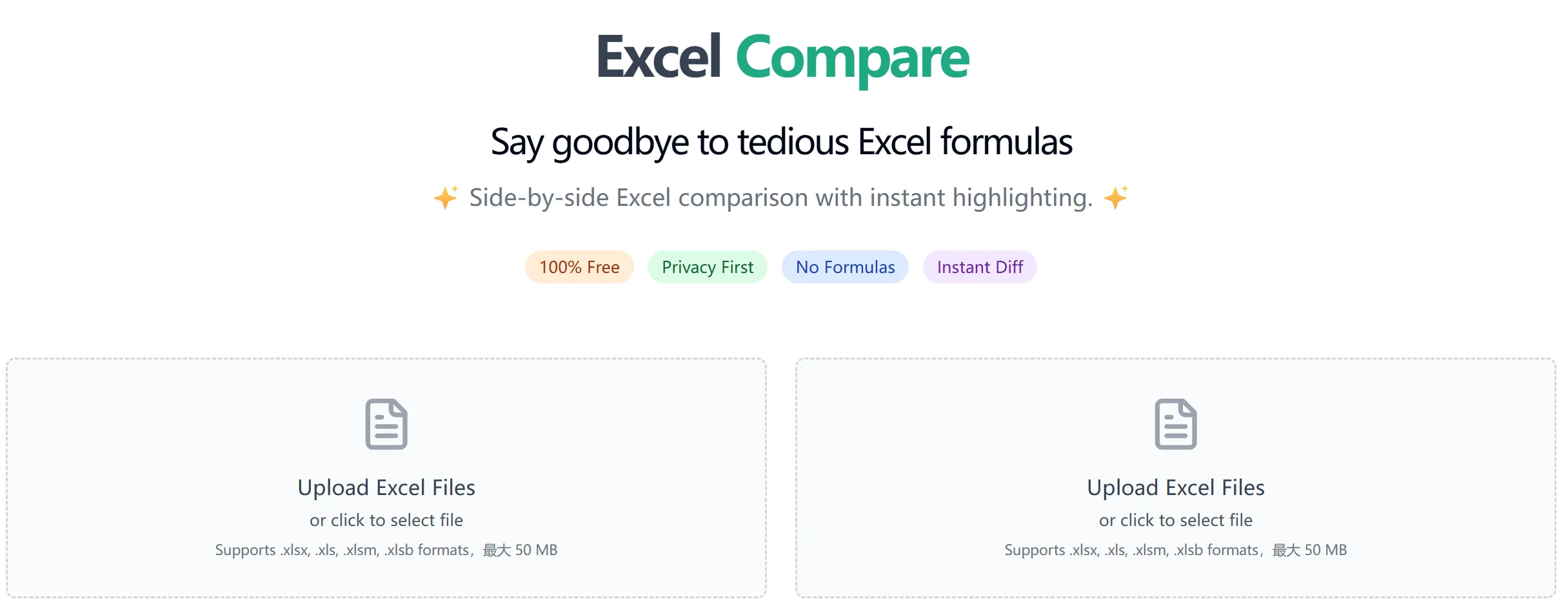
Step 1: Upload Your Files
You don’t need to download any heavy software. Just open the browser and drag your files in.
Step 2: Click Find Differences
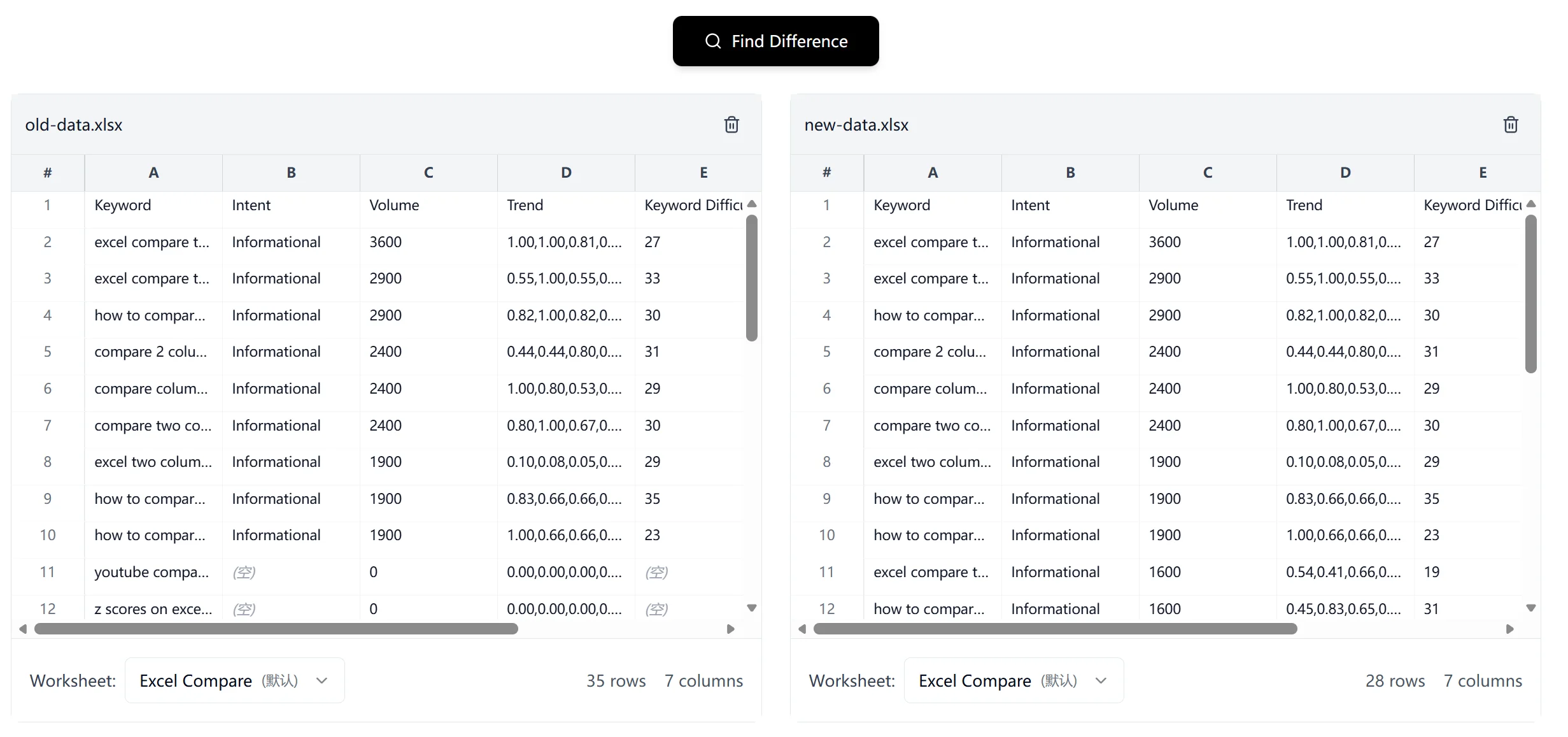
Once uploaded, the system automatically analyzes your Excel data. You will see a preview where you can choose which sheets to compare. Then, simply click the 'Find Difference' button to start.
Step 3: See the Differences Instantly
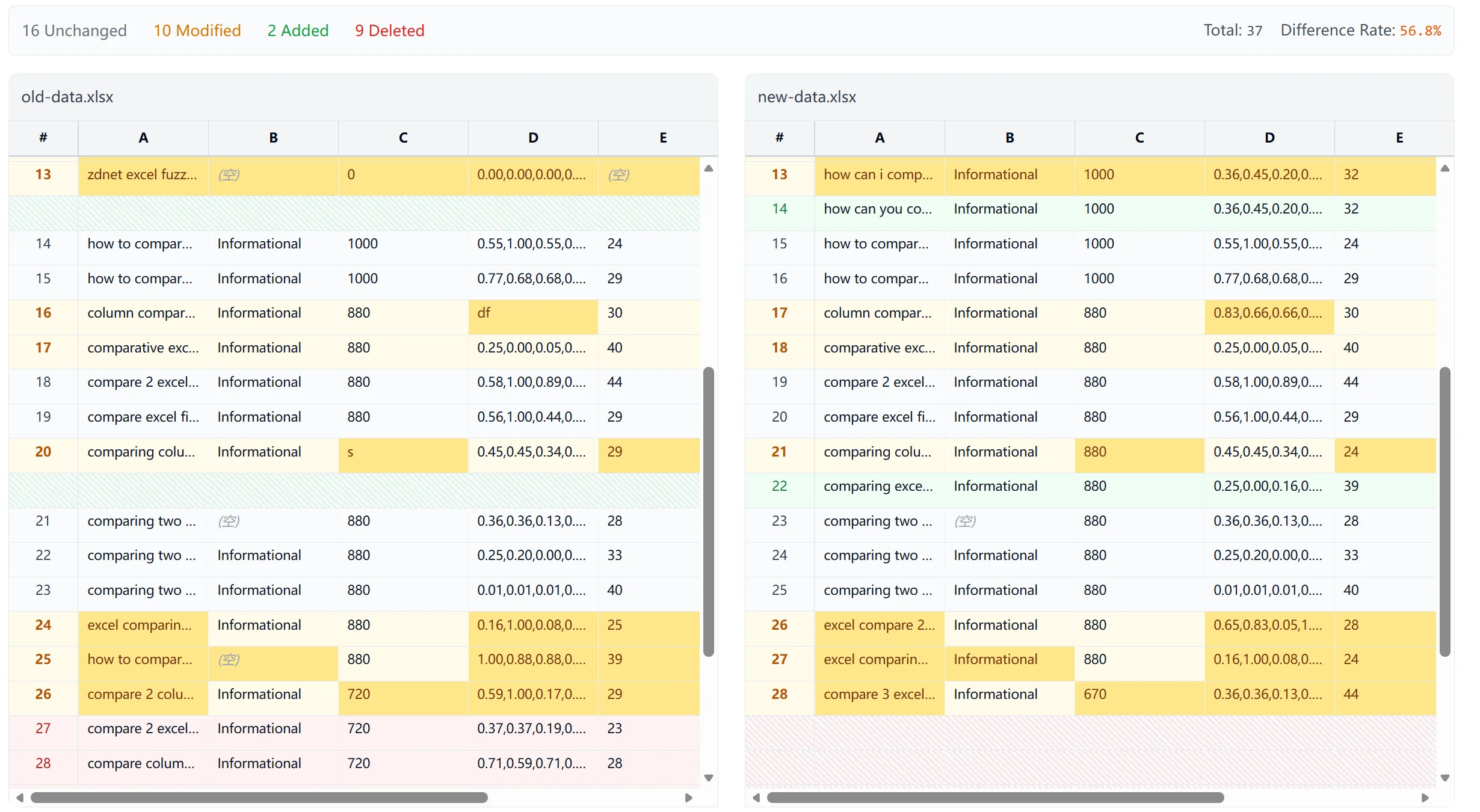
This is the best part. Instead of hunting for changes, the tool shows you a visual comparison.
- Highlight changes: Modified cells turn yellow. New rows turn green. Deleted ones turn red.
- Side-by-side view: You see the old file on the left and the new one on the right, perfectly aligned.
Once you see what’s different, you can decide what to do. You might want to export a report of just the changes, or merge excel sheets into a final, clean version.
Why Manual Methods Often Fail
You might ask: "Why not just use Excel built-in features?"
I used to do that. But if you are doing a large excel file comparison, the native tools just aren't good enough. Here is why.
1. VLOOKUP is a Pain
A lot of tutorials tell you to write formulas. But doing this without VLOOKUP is usually better.
Why? Because formulas are fragile. If you forget to lock a reference (using those $ signs), the whole thing breaks. Plus, writing formulas takes time. You want results, not a math lesson.
2. "View Side by Side" Has a Big Flaw
Excel lets you scroll two windows at the same time. That sounds good, until it isn't.
The problem is misaligned rows. If someone inserted a new row in the new file, everything below it shifts down. Suddenly, Row 10 on the left is matching Row 11 on the right. The comparison becomes useless.
Our tool fixes this. It detects inserted rows and keeps the data aligned.
3. Formatting Gets in the Way
Sometimes, the data is the same, but the font size changed. Excel might flag that as a difference.
A good tool lets you ignore formatting and focus only on the actual numbers and text.
Real-World Use Cases
I’ve seen this tool save time for all kinds of people:
- Accountants: checking a revised budget against the original.
- Shop Owners: doing an inventory list comparison to see which product prices increased from the supplier.
- Developers: checking data before and after moving a database.
- Teams: figuring out what your coworker changed in the shared file because they forgot to turn on "Track Changes."
Conclusion
You don't need to waste hours checking rows manually. It’s boring, and you might miss something important. If you need to check a few cells, manual is fine. But for anything else, automation is the way to go.
Ready to try it? Go ahead and use ExcelCompare for free. Drop your files in and finish your work in seconds.