Compare Two Excel Columns

Stop using tedious VLOOKUP or COUNTIF

Instantly find duplicates, unique values, and missing items.

100% FreePrivacy FirstNo FormulasInstant Diff

Your data never leaves your browser. 100% Private.

How to Compare Two Columns in Excel

Find duplicates and unique values without VLOOKUP formulas.

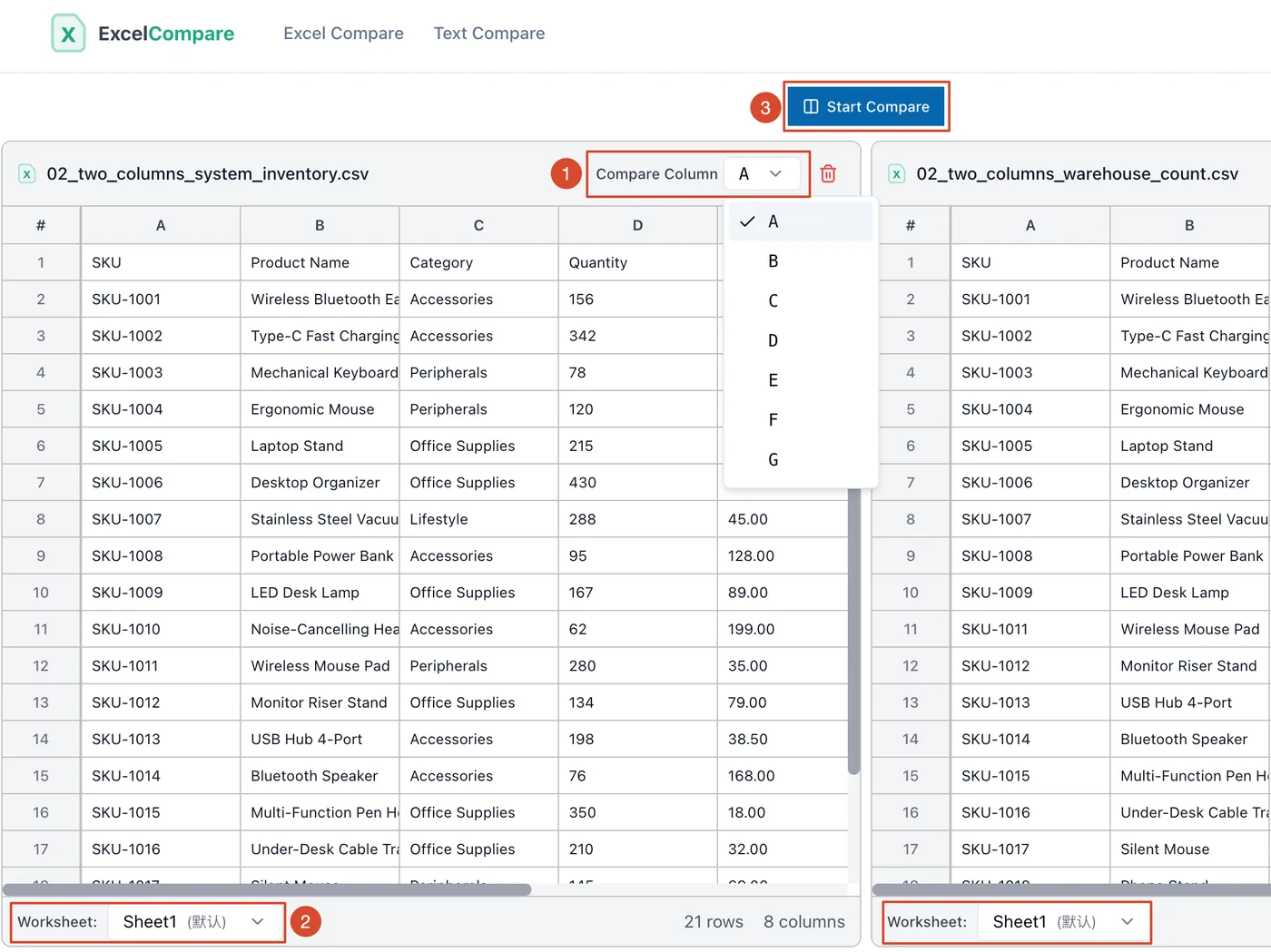
Comparing two lists in Excel often requires writing complex VLOOKUP formulas or using Conditional Formatting rules that are hard to manage. Our tool simplifies this into 3 steps:

Upload Your Files

Drag and drop your Excel files. You can verify lists from the same file or compare columns across two different files.

Select Target Columns

Unlike full-sheet comparisons, you simply choose "Column A" from the first list and "Column B" from the second list.

Choose Your View

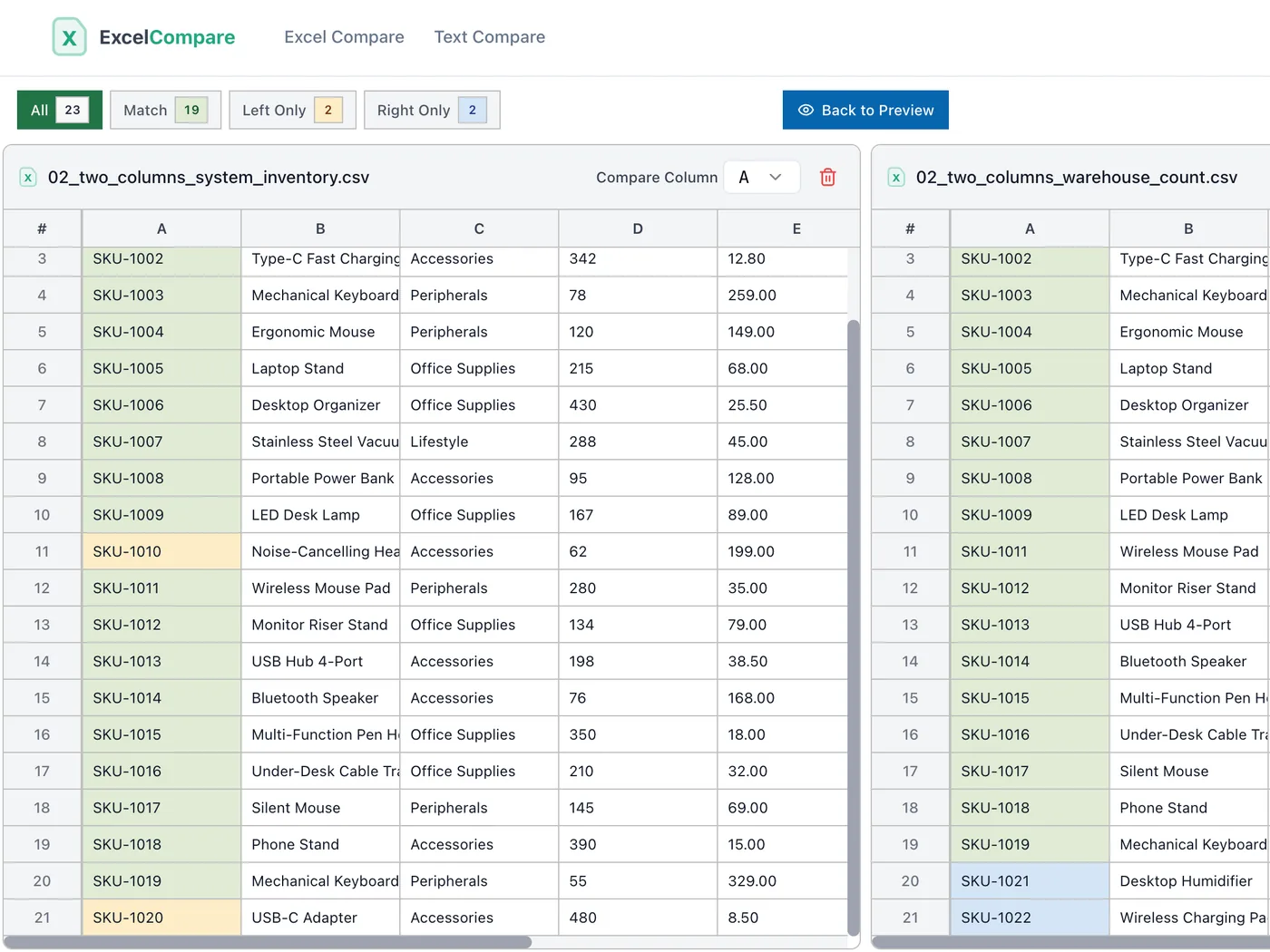
Intersection: See items present in both lists (Duplicates).
Unique to A: See what is missing from list B.
Unique to B: See new items added to list B.
Excel preview - Compare two columns
Highlight result - Compare two columns
Show unique values - Compare two columns
Show duplicates - Compare two columns

Real-World Scenarios for Column Comparison

Simplify data reconciliation tasks for marketing, HR, and finance.

Email Marketing Cleanup

You have a "New Leads" list and a "Do Not Contact" list. Use this tool to compare the email columns and instantly generate a clean list by removing anyone who appears in the exclusion list.

Event Attendance Tracking

Compare your "Registered Attendees" column against the "Checked-In" column. Select "Unique to Registered" to instantly get a list of people who signed up but missed the event.

Monthly Financial Reconciliation

Upload your internal ledger and your bank statement. Compare the "Transaction Reference ID" columns to spot which entries are recorded in the bank but missing from your books (or vice versa).

FAQ about Comparing Two Columns

Have another question? Contact us at support@excelcompare.org

1

How do I compare two columns in Excel for duplicates without formulas?

Simply upload your file to ExcelCompare, select the two columns you want to check, and click the "Intersection" button. The tool will instantly extract all duplicate values found in both lists, saving you from writing COUNTIF or VLOOKUP formulas.

2

Can I compare columns from two different Excel files?

Yes. Native Excel requires both sheets to be in the same workbook for easy comparison. Our online tool allows you to upload two separate files (e.g., January.xlsx and February.xlsx) and compare specific columns side-by-side immediately.

3

What if the data has extra spaces or different casing?

Our tool includes smart trimming. It automatically ignores leading/trailing spaces, ensuring that " Apple " and "Apple" are treated as a match. This saves hours of manual data cleaning.

4

Is this tool different from the "Sheet Comparison" on the homepage?

Yes. The homepage tool is for "Compare Two Excel Files"—it highlights changes in layout, formatting, and cell content row-by-row. This "Column Comparison" tool is for Lists (Set Logic). It ignores row positions and focuses purely on whether items exist in one list or the other.

5

I need to match rows by ID and then compare their values (e.g., Price). Is this the right tool?

No. If you need to align rows based on a Key (like SKU) and then compare a Value (like Price), please use our Key + Value Comparison tool. The current page is strictly for comparing the contents of two single columns.

6

Is my data secure?

Completely. All comparison processing happens in your browser (Client-side). Your Excel files are never uploaded to our server or stored, ensuring your sensitive lists remain private.