Reconcile Excel Files by Key Column
Match by ID. Flag mismatches. Catch missing records. Built for finance, ops, data teams.
100% FreeBrowser-OnlyNo UploadNo FormulasInstant Diff
Click to see the differences among the 3 modes.
Files are processed in your browser. No data is uploaded, 100% Private.
How to Reconcile Two Excel Files by Matching Records
Pick a shared column to align your data, then check whether values match row by row.
Step 1
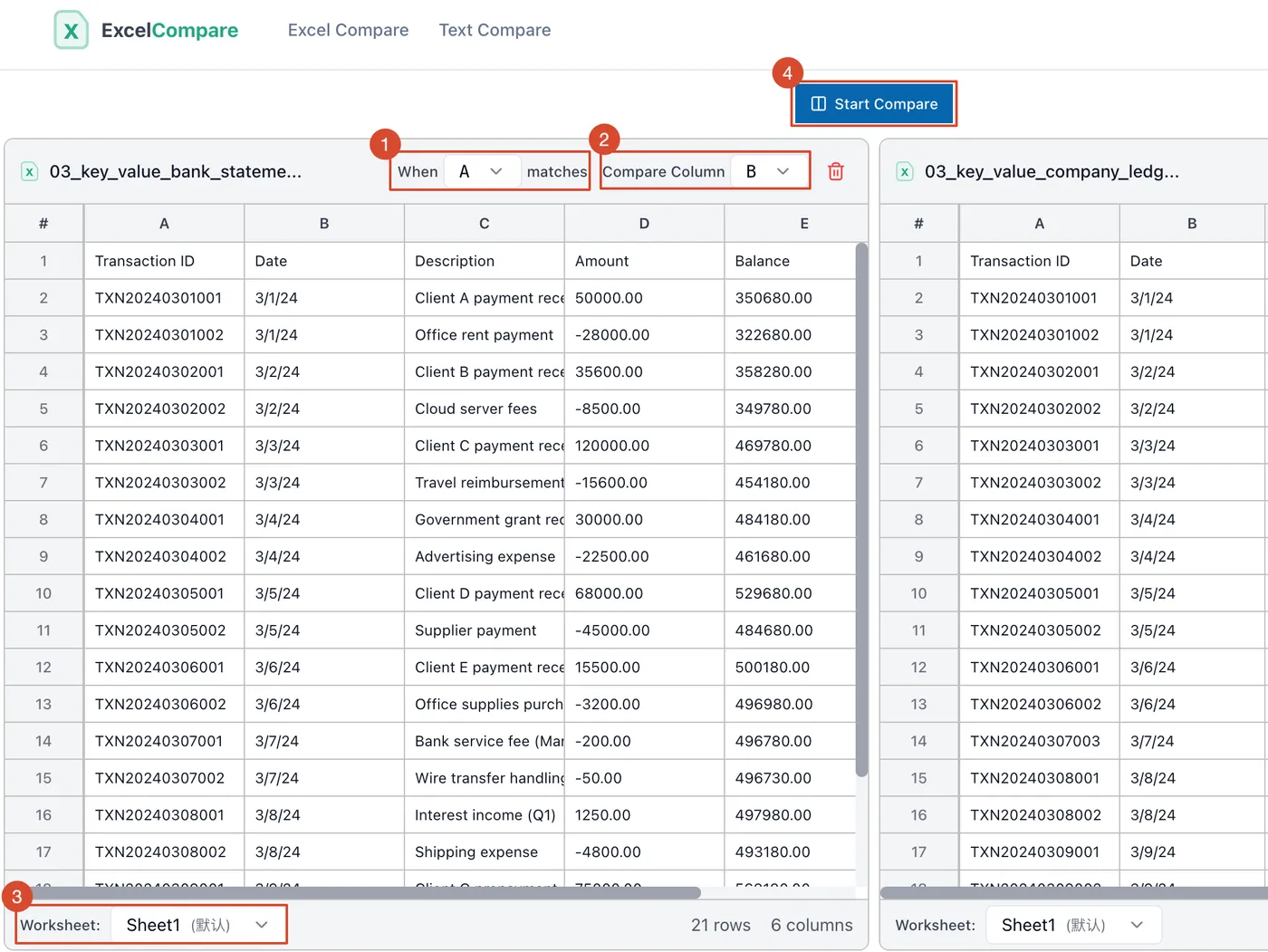
Upload Files and Choose a Matching Column
Upload both files, select the right sheet, pick an ID column like order number or name, then choose the value column to check.
Step 2
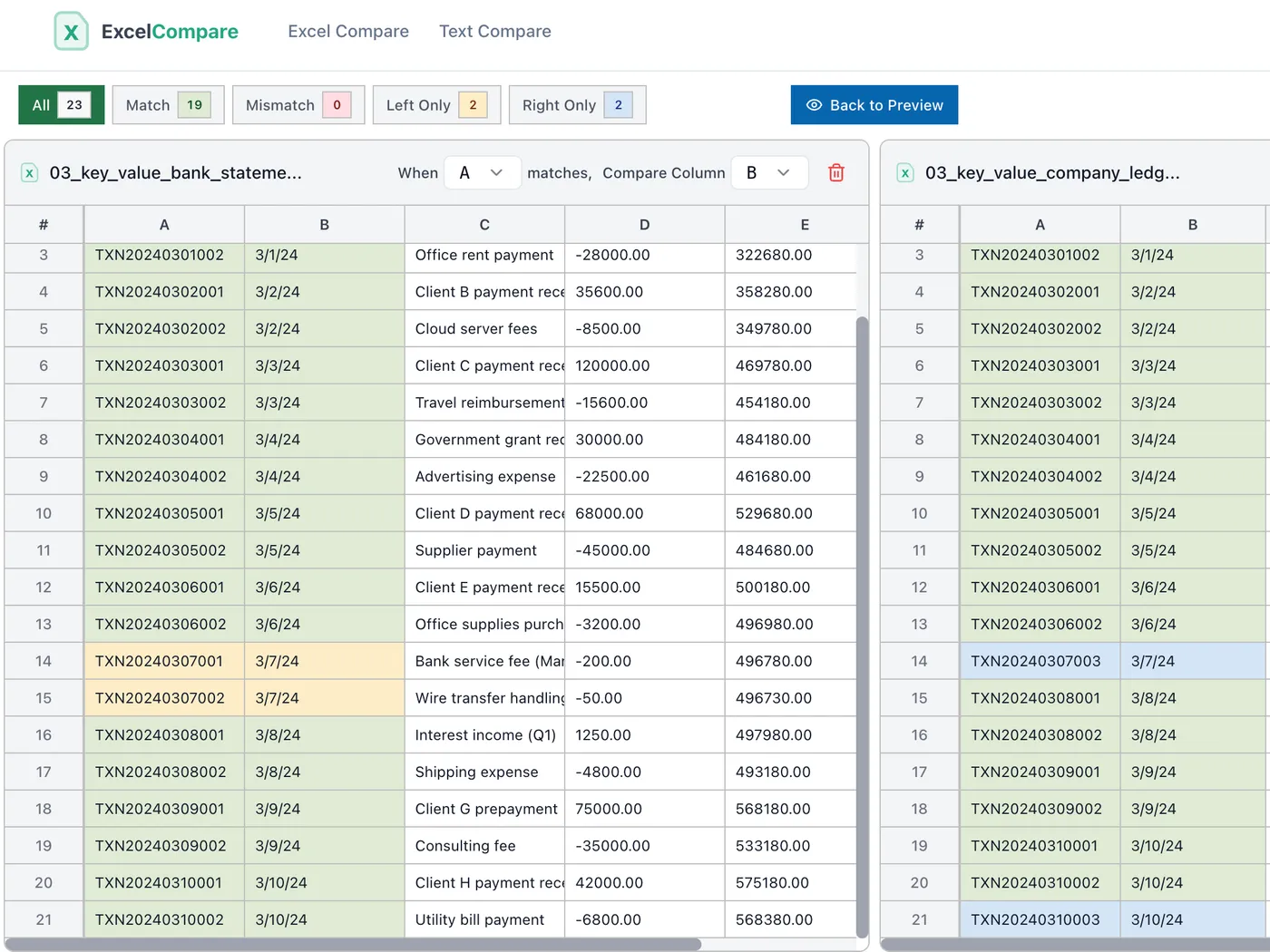
Spot Matches, Mismatches, and Missing Rows
Matched values are green, mismatches are red, left-only rows are yellow, right-only rows are blue. Filter by type to focus fast.
Step 3
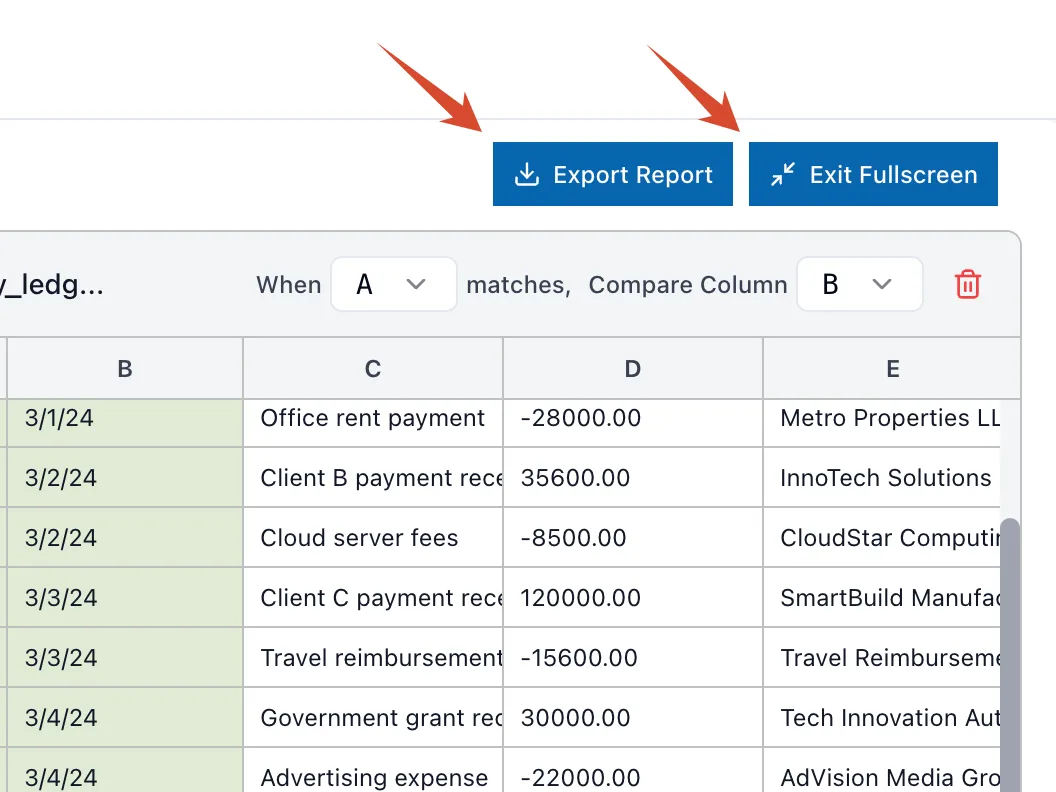
Save and Share Your Report
Export a standalone HTML file with all highlights and filters preserved. Shareable links with custom expiration are on the way.
Master Your Data Reconciliation
Stop manually lining up rows. ExcelCompare allows you to compare by key columns, ensuring accuracy even when your data is sorted differently.
−
Case 1: Bank Reconciliation
Transaction orders never match perfectly between your ledger and the bank feed. Manual eye-balling is slow and risky.
2
Case 2: Invoice & PO Matching
3
Case 3: Expense Report Audits
4
Case 4: Payroll Data Reconciliation
5
Case 5: Inventory Audits
The Solution:
Use ExcelCompare to compare by key columns — specifically the Transaction ID. We automatically align the rows for you.
What You'll Fix:
- • Key: Transaction Reference
- • Value: Deposit/Withdrawal Amount
- • Instantly spot bank fees not recorded in your ledger.
- • Identify timing differences or missing entries in seconds.
Result:
Reduced reconciliation time from 4 hours to 15 minutes. Discovered 3 unrecorded wire fees totaling $1,240.
Frequently Asked Questions
Reconciliation means matching records from two datasets to verify they agree. ExcelCompare uses a unique "Key" column such as an Invoice Number or SKU to pair rows from both files, then flags value differences, added records, and missing entries.
The Compare Files tool matches rows by physical row position. Reconcile matches by a unique key ID, so even if data is reordered or shuffled between files, every record is still accurately compared.
Choose a column containing unique, non-repeating values: Invoice Number, Order ID, SKU, Employee ID, or Email address. Avoid columns like "Status" or "Category" with repeated values, as these cannot uniquely identify individual records.
ExcelCompare categorizes every record into four groups: "Match" (key found in both files, values identical), "Mismatch" (key found in both, but values differ), "Left Only" (key exists only in the first file), and "Right Only" (key exists only in the second file). This gives you an instant, structured audit trail.
Yes. Upload your internal ledger and bank feed, set Transaction ID as the Key and Amount as the Value. ExcelCompare instantly flags unrecorded fees, timing differences, and missing entries, cutting a 4-hour reconciliation down to under 15 minutes.
No sorting needed. Since ExcelCompare matches by key ID rather than row order, you can upload two completely unsorted lists and receive an accurate, row-by-row reconciliation result. This is a key advantage over manual VLOOKUP-based methods.
Yes, and this is one of the most common use cases. Set the PO Number as your Key and Amount as the Value. ExcelCompare surfaces invoiced amounts that differ from the original PO, catching billing errors and short-shipments before payment is issued.
VLOOKUP must be hand-written, can fail with formatting inconsistencies, and is hard to audit. ExcelCompare automates the entire lookup-and-match process visually, displays results side-by-side, and requires zero formula knowledge. Results are immediate and verifiable.
ExcelCompare flags duplicate keys as ambiguous, since a single ID cannot be uniquely mapped. We recommend deduplicating your key column first. For datasets with intentional duplicates, our Compare Columns tool may be more appropriate.
Currently, after specifying the Key column, you can select one Value column per reconciliation run. To audit multiple fields such as both Amount and Status, run a separate reconciliation for each. This keeps each result focused and easy to review.
Yes. All key matching is always case-sensitive. "INV-101" and "inv-101" are treated as different keys. To avoid false "Left Only" or "Right Only" results, standardize the capitalization in your identifier column before uploading both files.
Yes. Generate a secure, shareable link to your reconciliation view, with an optional expiration date for security. Team members can review matched, mismatched, and missing records online instantly without exchanging large Excel files.