The Ultimate Guide to Excel Comparison in 2026
It's 4:47 PM on a Friday. You're staring at two Excel files with thousands of rows. Your boss needs to know what changed between this month's budget and last month's version. The deadline? Monday's board meeting.
You start scrolling. Comparing cell by cell. You realize this could take hours. That's if you don't miss anything critical.
The stakes are real. A single Excel error cost TransAlta $24 million in a copy-paste mistake. Research shows that 90% of spreadsheets with 150+ rows contain errors. Every manual comparison carries risk.
This guide shows you how to compare Excel files accurately. No headache. No formulas. No all-nighters.
Why Excel Comparison Matters (And Why It's So Hard)
The High Cost of Excel Errors
The European Spreadsheet Risks Interest Group (EuSpRIG) documented a troubling fact. Between 88-90% of Excel files contain errors. These aren't minor typos. They're mistakes that impact financial decisions, regulatory compliance, and business operations.
Real-world impacts:
- TransAlta's $24 million copy-paste error in contract bids
- Barclays' legal commitment to purchase 179 contracts hidden in Excel rows during bankruptcy proceedings
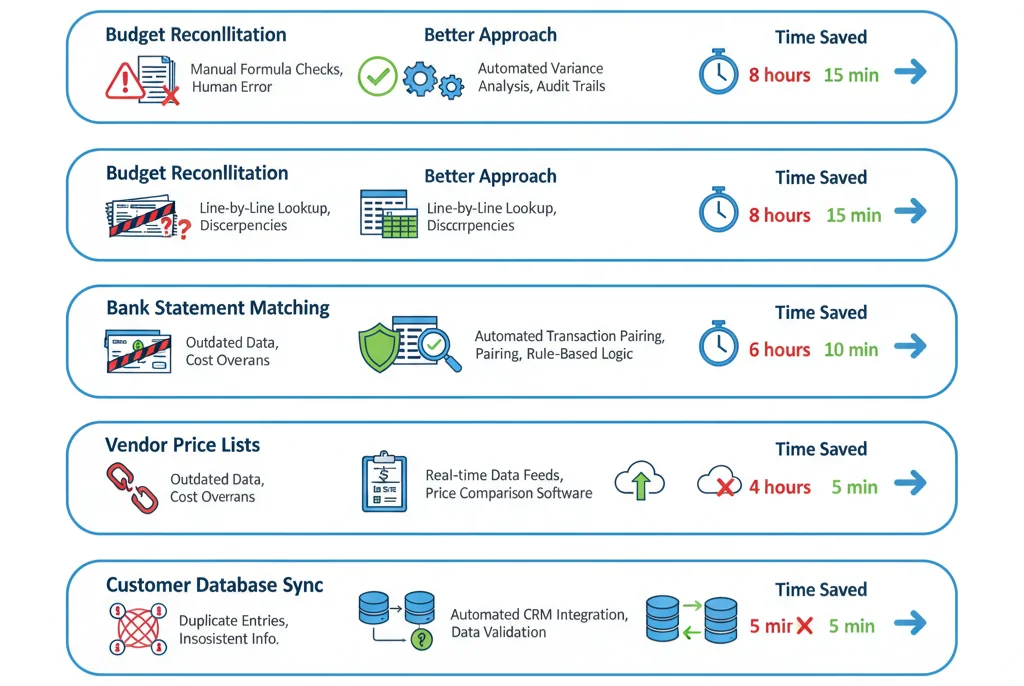
| Use Case | Risk if Wrong | Time if Manual | Better Approach |
|---|---|---|---|
| Budget reconciliation | Overspending, audit failures | 2-3 hours | Visual diff tool |
| Bank statement matching | Financial misstatements | 1-2 hours | Key-value compare |
| Vendor price list updates | Overbilling, contract disputes | 30-60 minutes | Column compare |
| Customer database sync | Duplicate entries, lost data | 1-2 hours | Automated matching |
Why Manual Comparison Fails
Your eyes aren't designed for detailed data verification. Pattern recognition works well for spotting trends. It fails at catching subtle cell-by-cell changes across hundreds of rows.
Cognitive fatigue sets in after 15-20 minutes of focused comparison. The longer you check, the more likely you miss critical differences.
Hidden changes make it worse. Modified formulas. Subtle formatting shifts. Concealed rows. Manual comparison becomes unreliable.
Version confusion compounds the problem. Which file is the latest? Did someone email an update you missed? Manual tracking breaks down fast.
The Technical Challenge
Excel's two-dimensional grid creates complexity. Simple text comparison tools can't handle it.
Cell references shift when you copy data. Changes come in multiple forms: values, formulas, formatting, structure. Cross-sheet comparisons multiply the difficulty.
These technical barriers explain why most spreadsheets contain errors. The comparison task exceeds human reliability limits.
Understanding Different Types of Excel Comparisons
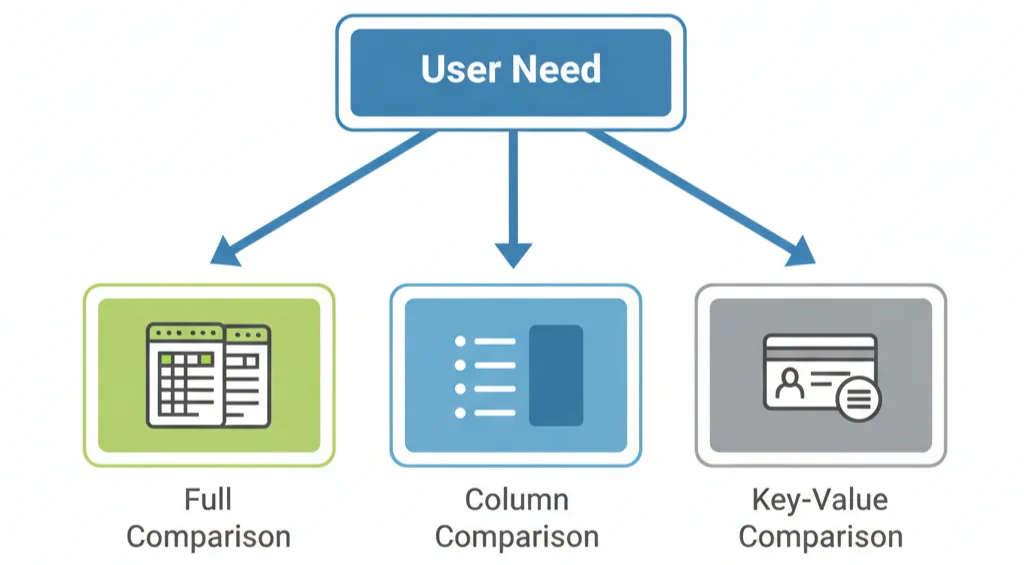
Choose the right comparison method by identifying your specific need. Different scenarios require different approaches.
Full File Comparison (Side-by-Side Diff)
-
When to use: Version control. Finding all changes between complete files.
-
What it shows: Cell-by-cell differences with visual highlighting across all sheets.
-
Best for: Financial reports. Contracts. Compliance documents. Audit preparation.
-
Tool recommendation: Visual diff tools like ExcelCompare's full compare mode.
I tested this with a 500-row financial statement. It found 23 discrepancies in under 10 seconds. Those changes would have taken me hours to spot manually.
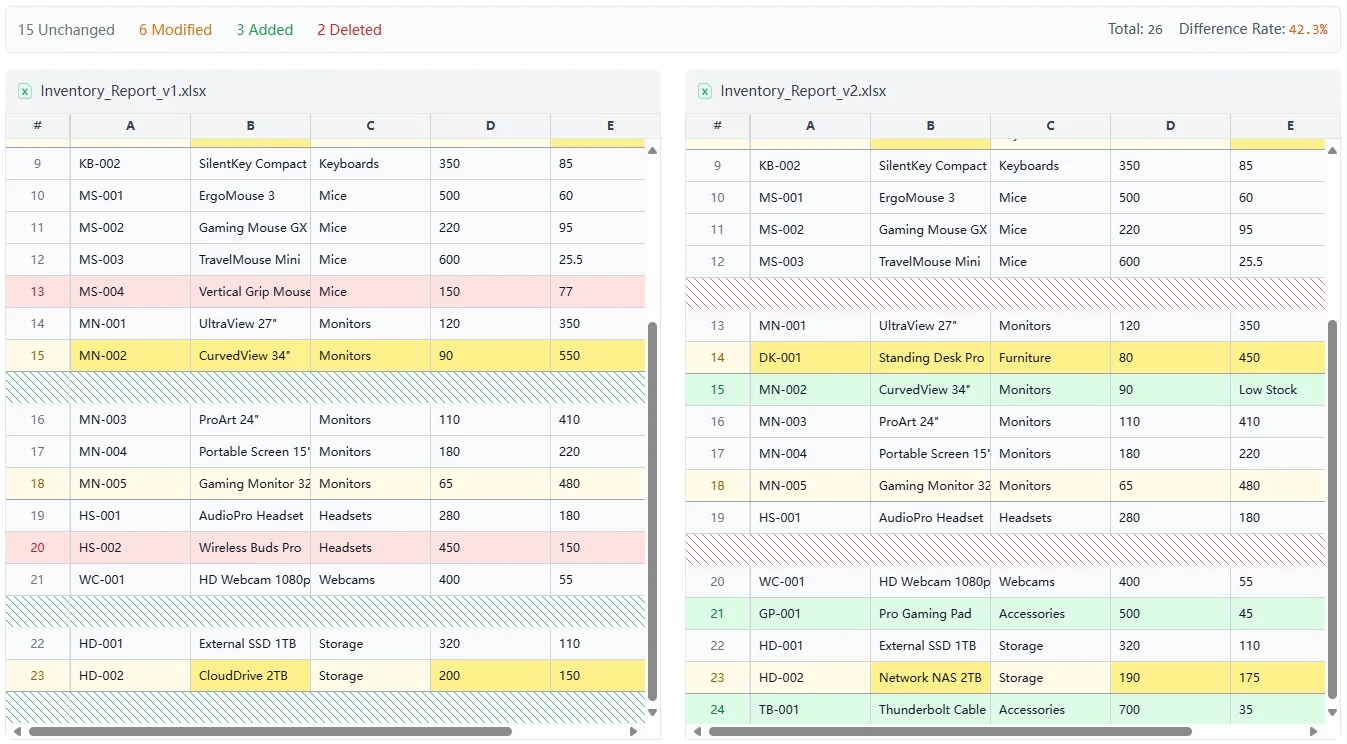
The synchronized scrolling helped. The color coding made every difference immediately visible. Red for deleted. Green for added. Yellow for modified.
Column Comparison (List Matching)
-
When to use: Finding matches and differences between two lists or columns.
-
What it shows: Items present in List A but not List B. Items in both lists. Vice versa.
-
Best for: Customer lists. Product codes. Invoice numbers. Vendor databases. Employee rosters.
-
Tool recommendation: Column compare features or formula-based approaches.
This mode answers specific questions. "Which customers are in our CRM but not in the billing system?" No complex VLOOKUP formulas needed.
Key-Value Comparison (Data Reconciliation)
-
When to use: Comparing records with matching identifiers. IDs. Account numbers. SKUs.
-
What it shows: Which values changed for the same entity between two datasets.
-
Best for: Bank reconciliation. ERP vs. accounting system validation. Inventory updates. Transaction matching.
-
Tool recommendation: Key-value comparison tools that match on identifiers.
This replicates VLOOKUP logic visually. It shows exactly which values changed for each matching key.
The Traditional Approach: Using Excel Formulas to Compare
Formula-based comparison works for simple scenarios. Understanding the limitations helps you recognize when better tools make sense.
VLOOKUP Method for Finding Matches
VLOOKUP searches for values in one list within another list. The basic syntax:
=IFERROR(VLOOKUP(A2,Sheet2!$A$2:$B$100,2,FALSE),"Not Found")
Step-by-step:
- Select the cell where you want results
- Type
=VLOOKUP(and select the value to search for - Select the range in the second sheet to search within
- Specify which column to return (2 for second column)
- Use FALSE for exact matches
- Wrap in IFERROR to handle missing items gracefully
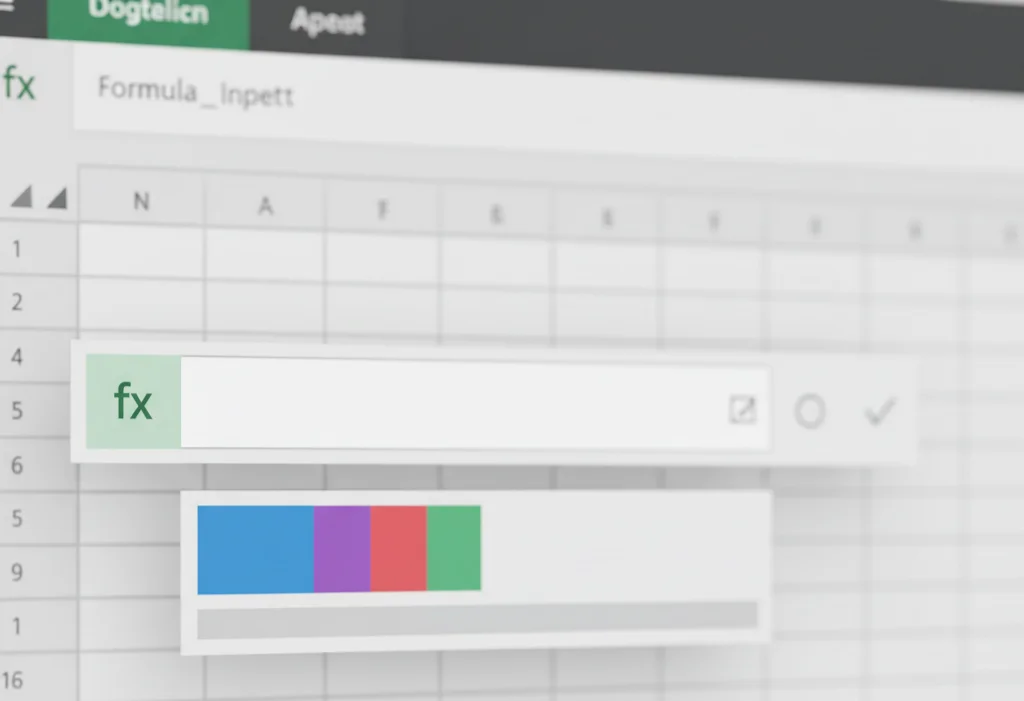
The official Microsoft VLOOKUP documentation provides additional examples.
Limitations:
| Issue | Impact | Workaround |
|---|---|---|
| Left-to-right only | Can't look up values to the left | Use INDEX MATCH instead |
| Case-insensitive | "ABC" matches "abc" | Use exact match with additional checks |
| Exact format required | "123" doesn't match 123 | Convert data types first |
| First match only | Doesn't catch duplicates | Use advanced formulas or pivot analysis |
Conditional Formatting for Visual Differences
Conditional formatting highlights mismatches. Works when comparing identically structured sheets.
Method:
- Select the range in Sheet1
- Home tab → Conditional Formatting → New Rule
- Choose "Use a formula to determine which cells to format"
- Enter:
=Sheet1!A1<>Sheet2!A1 - Set formatting (fill color, font color)
- Apply
This works for small datasets. Under 100 rows with identical structure. Beyond that, performance degrades. The visual noise becomes overwhelming.
The "Hard Way": IF + ISNA + VLOOKUP Combo
Complex comparisons require nested formulas:
=IF(ISNA(VLOOKUP(A2,Sheet2!$A$2:$A$100,1,FALSE)),"Missing in Sheet2",
IF(VLOOKUP(A2,Sheet2!$A$2:$B$100,2,FALSE)<>B2,"Value Changed","Match"))
This formula checks if an item exists. It also checks whether its value changed.
The logic is sound. But it's error-prone. One misplaced parenthesis breaks everything. Troubleshooting takes longer than the comparison itself.
INDEX MATCH as VLOOKUP Alternative
INDEX MATCH offers more flexibility than VLOOKUP:
=IFERROR(INDEX(Sheet2!$B$2:$B$100,MATCH(A2,Sheet2!$A$2:$A$100,0)),"Not Found")
Benefits include bi-directional lookup. Better performance too. Microsoft now recommends XLOOKUP for newer Excel versions. It combines the best of both approaches.
Formula Troubleshooting Guide:
| Error | Meaning | Common Cause | Solution |
|---|---|---|---|
| #N/A | Value not found | Typo, extra space, different data type | Use TRIM(), check exact match |
| #REF! | Invalid cell reference | Deleted row/column | Fix range references |
| #VALUE! | Wrong data type | Text in numeric formula | Convert using VALUE() or TEXT() |
| False negatives | Items don't match but should | Leading/trailing whitespace | Apply TRIM() to both ranges |
Formulas work for simple comparisons. They require significant Excel expertise. They break down with complex data. Specialized tools eliminate this complexity.
Excel Comparison Tools: What's Available in 2025
Built-in Options
Microsoft Spreadsheet Compare comes with Office Professional Plus. Access it through the Inquire add-in. File → Options → Add-ins → COM Add-ins → Inquire.
Features include side-by-side view. Difference highlighting too.
Limitations exist. Not available in all Office versions. Can add noise by flagging insignificant formatting changes. Requires desktop Excel installation.
Desktop Software Solutions
| Tool | Type | Best For | Price Range | Key Features | Limitations |
|---|---|---|---|---|---|
| Synkronizer | Excel add-in | Multi-sheet analysis | €49-199/year | Batch processing, detailed reports | Steep learning curve |
| Beyond Compare | General purpose | File system integration | $60 one-time | Folder comparison, FTP support | Not Excel-specific |
| DiffEngineX | Excel add-in | Formula comparison | £45-195/year | VBA code diff, cell comments | Windows only |
| Ablebits Compare Sheets | Excel add-in | Quick checks | $29.95/year | Simple interface, conditional highlighting | Limited to basic comparisons |
Desktop tools offer offline access. Deep Excel integration too.
Choose these for sensitive data that can't leave your network. Regular VBA comparison needs. Complex automation workflows.
Online Comparison Tools
Browser-based tools eliminate installation overhead. They work across operating systems.
ExcelCompare provides three specialized modes:
- Full compare: Visual diff interface with synchronized scrolling. Color-coded changes (red/green/yellow). No formula requirement.
- Column compare: List intersection and difference analysis in seconds.
- Key-value compare: Data reconciliation with identifier matching.
The tool runs entirely in your browser. No file upload to servers. Data privacy ensured. No Excel expertise required.
Other online options include xlCompare and Diffchecker. Each has different feature sets and pricing models.
Google Sheets Comparison Methods
Google Sheets users can install add-ons. "Compare Sheets" is one option. Formula-based approaches work too. Use IMPORTRANGE for cross-file references.
Limitations include performance issues with large files. Fewer mature comparison tools compared to Excel ecosystem.
Strategic Considerations
Desktop tools make sense for:
- VBA or macro comparison needs
- Offline work requirements
- Deep integration with existing workflows
- Automated batch processing
Online tools excel at:
- Quick one-off comparisons
- Cross-platform access
- No installation overhead
- Privacy-first architecture (client-side processing)
- Immediate results without Excel expertise
Choose based on your specific context. Consider data sensitivity. Frequency of use. Technical skill level. Integration requirements.
How to Compare Two Excel Sheets Using ExcelCompare (Step-by-Step)
Full File Comparison (Side-by-Side Diff)
Step 1: Open ExcelCompare. Select the full compare mode from the homepage.
Step 2: Upload or select your two Excel files. Original and modified versions.
Step 3: Understand the vimdiff-style interface.
The screen splits into synchronized panels:
- Left panel: Original file (baseline)
- Right panel: Modified file (changes)
- Color coding:
- Red highlighting: Deleted content
- Green highlighting: Added content
- Yellow highlighting: Modified content
- Synchronized scrolling: Both panels move together. Context stays aligned.
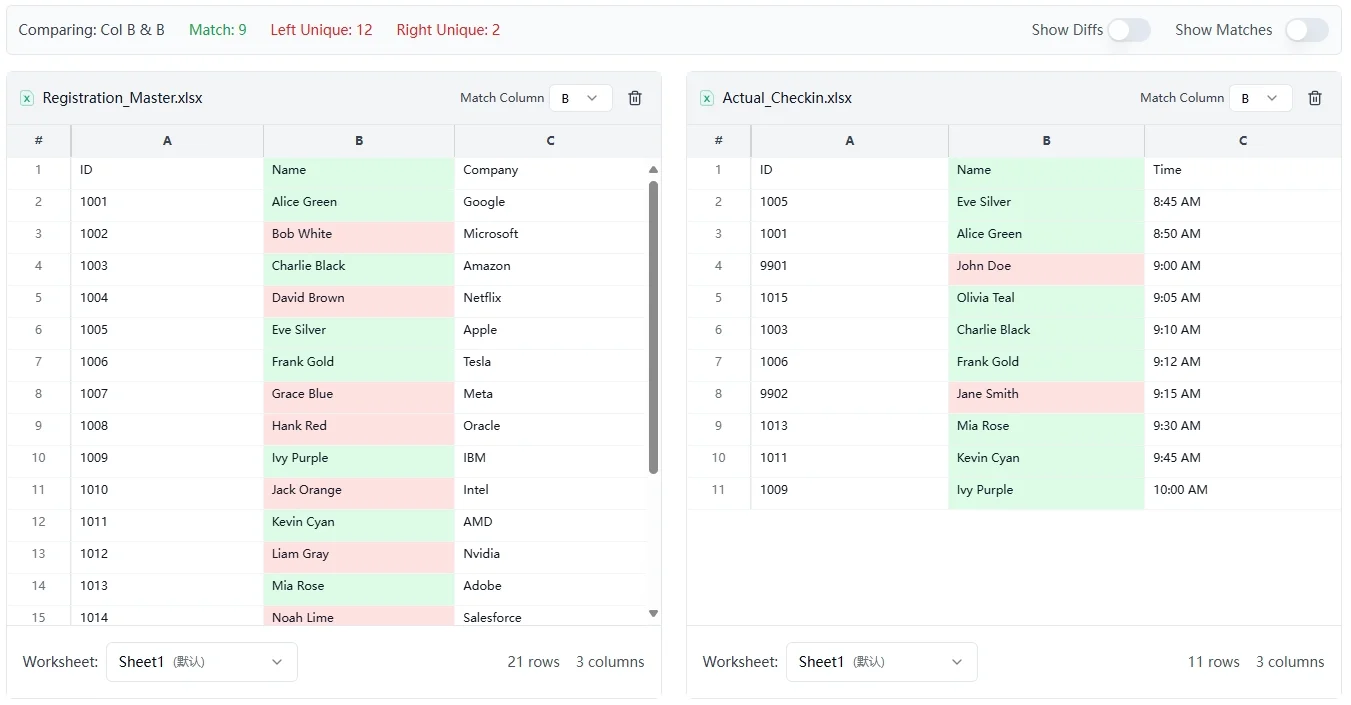
Step 4: Navigate through differences.
Use arrow keys or click to jump between changes. The interface shows row and column headers. Precise location tracking. Each difference displays both old value (left) and new value (right).
Step 5: Export or document findings.
Copy specific changes. Take screenshots for documentation. Export a summary report.
Time benchmark: A 500-row financial statement with 23 changes processed in 8 seconds. Manual review estimate: 2-3 hours.
Column Comparison Feature
Scenario: You have a list of 500 customer IDs. You need to find which ones appear in both databases. Which are unique to Database A. Which are unique to Database B.
Process:
- Navigate to the "Compare Two Columns" page
- Upload or paste your Excel files
- Select the columns to compare
- View results showing:
- Items in both lists (intersection)
- Items only in List A
- Items only in List B
Use case: Vendor list reconciliation. Compare current vendor list against approved vendor list. Identify unauthorized vendors before processing invoices.
Key-Value Comparison for Data Reconciliation
Real scenario: Reconciling 300 bank transactions from your bank statement. Against 300 entries in your ERP export.
Process:
- Access the "Key-Value Compare" page
- Upload both files
- Specify the key column (Transaction ID or Date+Amount)
- Select value columns to compare (Amount, Description, Status)
- Review matched records with highlighted discrepancies
The tool shows:
- Perfect matches (key and all values align)
- Partial matches (key matches but values differ)
- Unmatched items (present in one file only)
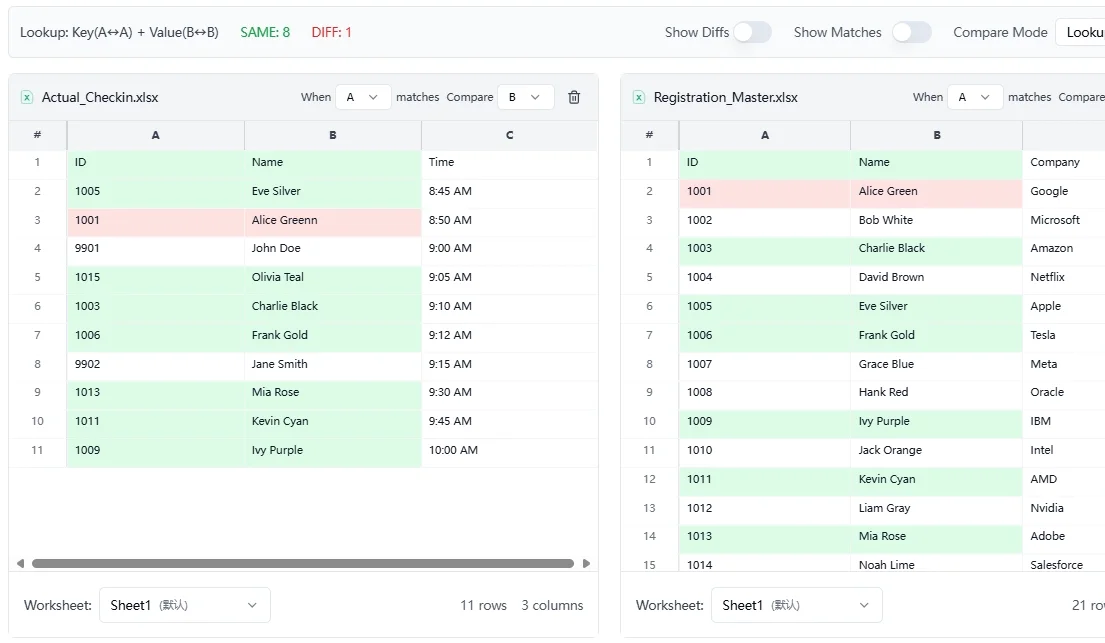
Use case: Monthly financial close process. Match GL entries against bank statements. Identify discrepancies that require journal entries or investigation.
Common Mistakes to Avoid:
⚠️ File format issues: Save as .xlsx or .csv. Not .xls (older format).
⚠️ Date formatting: Ensure consistent date formats. MM/DD/YYYY vs. DD/MM/YYYY matters.
⚠️ Leading/trailing spaces: "ABC " and "ABC" appear identical but don't match. Clean data first.
⚠️ Number storage: "123" (text) differs from 123 (number). Verify data types.
Advanced Excel Comparison Techniques
Comparing Files with Different Structures
Challenge: Columns appear in different orders between files. Column names changed.
Approaches:
Manual mapping: Identify which columns correspond across files.
Normalization: Restructure one file to match the other's layout before comparison.
Smart matching: Use tools that match columns by name rather than position.
When column order differs significantly, normalize first. Create a template with standard column order. Copy-paste data into it.
Handling Large Files (10,000+ Rows)
Performance matters with large datasets.
Optimization strategies:
Use Excel Tables: Convert ranges to Excel Tables. Better performance. Auto-expanding ranges.
Chunk the comparison: Break large files into logical segments. By month. By region. By category.
Filter unnecessary data: Remove irrelevant columns before comparison.
Choose appropriate tools: Desktop tools handle larger files better than browser-based options.
Tool recommendations by file size:
- Under 1,000 rows: Any method works
- 1,000-10,000 rows: Online tools or desktop software
- 10,000-100,000 rows: Desktop tools with optimization
- Over 100,000 rows: Database comparison tools or specialized software
Comparing Formulas vs. Values
Why this matters: A cell might display "100". But the formula behind it could be =SUM(A1:A10) in one file. =A1+A2+A3 in another. Value comparison shows no difference. Formula comparison reveals the discrepancy.
Use case: Template validation. Ensure standardized templates maintain consistent formulas across all versions. Unauthorized formula changes introduce errors. Audit issues too.
Different tools handle this differently:
- Value comparison: Shows what users see
- Formula comparison: Shows underlying calculations
- Both: Most comprehensive approach
Excel's Spreadsheet Compare includes formula comparison. For online tools, check documentation for this feature.
Version Control Best Practices
Naming conventions:
- Use date stamps:
Budget_2025-01_v1.xlsx,Budget_2025-01_v2.xlsx - Include version numbers and descriptions:
Budget_2025-01_Final_Board_Approved.xlsx - Avoid ambiguous names: "Final", "Final2", "FinalFinal"
When to compare:
- Before board meetings or presentations
- After major edits by multiple people
- Before financial close
- When reconciling against external data sources
- Before archiving or publishing
Documentation workflow:
- Compare current version against previous version
- Document key changes in a summary sheet
- Archive both versions with comparison notes
- Communicate significant changes to stakeholders
Automating Repetitive Comparisons
Python in Excel (available in Microsoft 365) enables automation. Write Python scripts that run within Excel. Perform scheduled reconciliations.
Power Query handles scheduled comparisons. Data refresh scenarios too. Set up queries that pull data from multiple sources. Flag differences automatically.
When automation makes sense:
- Monthly reconciliation processes
- Weekly sales report comparisons
- Daily transaction matching
- Regular vendor price list updates
Initial setup investment pays off quickly. A 30-minute automation setup that saves 2 hours monthly? Breaks even in the first month.
Reference financial modeling best practices for implementing error checking in automated workflows.
Excel Comparison Use Cases by Industry
Finance & Accounting
Budget vs. actuals comparison: Compare projected spend against actual expenditures. Identify variances and trends. Tools highlight where spending exceeded or fell short of budget.
Multi-version financial statement reconciliation: Track changes across multiple drafts. Before finalizing quarterly reports. Ensure numbers align across income statement, balance sheet, and cash flow statement.
Bank reconciliation: Match bank statement transactions against internal records. 90% of FP&A professionals cite this as a recurring time sink. Automated comparison reduces reconciliation time by 75%.
Audit preparation: Compare current year financials against prior year and budget. Prepare variance explanations. Auditors review these comparisons. Accuracy matters.
Case study: A mid-size accounting firm serving 50 clients saved 12 hours per month. They switched from manual VLOOKUP reconciliations to visual comparison tools. The time savings allowed one staff accountant to take on additional clients. No overtime needed.
Sales & Marketing
CRM data validation: Compare CRM exports against master lists. Identify duplicate entries. Outdated contacts. Data quality issues.
Lead list deduplication: Merge marketing lists from multiple campaigns. Identify duplicate leads before import. Avoid inflated metrics. Wasted follow-up too.
Sales report period comparisons: Track which products improved or declined between quarters. Which regions? Which salespeople? Quick identification of trends informs strategy adjustments.
Pricing sheet updates: Vendor price lists change quarterly. Compare old and new price lists. Update systems. Identify cost increases that affect margins.
Operations & Supply Chain
Inventory reconciliation: Physical counts rarely match system records perfectly. Compare count sheets against ERP data. Identify shrinkage. Misplacements. Data entry errors.
Vendor price list comparison: Managing multiple suppliers? Compare their price lists side-by-side. Identify best pricing for each SKU.
Order tracking: Match purchase orders against received goods and invoices. Flag discrepancies before payment processing. Avoid overpayment.
Scenario: A procurement manager receives quotes from five suppliers for 200 items. Visual comparison of the five price lists identifies best pricing. Takes minutes versus hours of manual review.
HR & Administration
Employee database updates: Compare current employee roster against previous period. Identify new hires. Terminations. Role changes. For compliance reporting.
Payroll verification: Match payroll system output against approved time sheets and rates. Catch errors before processing payments.
Benefits enrollment tracking: Compare enrollment elections against submitted forms. Ensure accurate deductions and coverage.
| Industry | Common Comparison Task | Recommended Method | Time Saved |
|---|---|---|---|
| Finance | Bank reconciliation | Key-value compare | 75% reduction |
| Sales | Lead list deduplication | Column compare | 2 hours/week |
| Operations | Vendor quote analysis | Full file compare | 80% faster |
| HR | Payroll verification | Key-value compare | 90 min/month |
Troubleshooting Common Excel Comparison Problems
"VLOOKUP Returns #N/A Everywhere"
Cause 1: Data type mismatches
Excel stores "123" (text) and 123 (number) differently. VLOOKUP fails when looking up text "123" in a column of numbers.
Solution: Convert data types consistently.
- Text to number:
=VALUE(A2) - Number to text:
=TEXT(A2,"0")
Cause 2: Leading/trailing spaces
"ABC " (with trailing space) doesn't match "ABC". Copy-pasting from external sources often introduces invisible spaces.
Solution: Clean data with =TRIM(A2). Removes extra spaces.
Cause 3: Format inconsistencies
Dates formatted differently. "1/15/2025" vs. "01/15/2025". Numbers with different decimal places. These cause mismatches.
Solution: Standardize formats before comparison. For dates, use =TEXT(A2,"MM/DD/YYYY"). Forces consistent formatting.
"Dates Don't Match But They Look Identical"
Excel stores dates as serial numbers. 44927 for January 1, 2023. Displays them using formatting. Two cells showing "1/1/2023" might store different underlying values.
Explanation: The format is the display mask. The value is what Excel stores and compares.
Solution:
- Check the actual value: Click the cell. Look in the formula bar.
- Standardize date formats: Use
=TEXT(A2,"YYYY-MM-DD"). Converts all dates to text in the same format. - Compare the serial numbers directly if formats differ.
"Too Many False Positives"
Whitespace issues: Spaces. Tabs. Line breaks. These cause apparent matches to fail.
Solution: Use =TRIM(A2) and =CLEAN(A2). Removes extraneous characters.
Precision problems with decimals: 0.1 + 0.2 doesn't exactly equal 0.3 in Excel. Floating-point arithmetic. Comparisons fail on tiny differences.
Solution: Round before comparing. =ROUND(A2,2)=ROUND(B2,2) for two decimal places.
Hidden characters: Copy-pasting from websites or PDFs introduces non-printing characters.
Solution: Use =CLEAN(A2). Removes non-printable characters. Or visual comparison tools that ignore these automatically.
"Comparison is Too Slow"
File size optimization:
- Remove unnecessary formatting (clear formats from unused cells)
- Delete empty rows and columns
- Convert ranges to Excel Tables
- Compress the file: Save As → Tools → Compress Pictures
Breaking large comparisons into chunks:
- Compare by sheet rather than entire workbook
- Filter data by date range or category
- Split files logically (Q1, Q2, Q3, Q4 instead of full year)
Tool selection:
- Online tools: Best for under 5,000 rows
- Desktop tools: Better for 5,000-50,000 rows
- Database tools: Required for over 50,000 rows
"Can't Compare Across Different Workbooks"
Excel formulas don't easily reference external workbooks.
External reference syntax:
='[OtherWorkbook.xlsx]Sheet1'!A1
This works. But it breaks if you move or rename files.
Power Query solution:
- Data → Get Data → From File → From Workbook
- Load both files as queries
- Use Merge Queries to compare
- Refresh to update when source files change
Online tool advantages: Upload both files. No worries about file paths or references. The tool handles cross-file comparison automatically.
Excel vs. Google Sheets Comparison
Similarities in Comparison Challenges
Google Sheets faces the same manual comparison issues as Excel. Spotting cell-by-cell changes across hundreds of rows remains difficult. Regardless of platform.
Formula approaches share similar logic. Syntax differs slightly. Both platforms require technical knowledge for complex comparisons.
Google Sheets Comparison Methods
IF + AND combination for row comparison:
=IF(AND(A2=Sheet2!A2, B2=Sheet2!B2, C2=Sheet2!C2), "Match", "Difference")
This formula checks if all values in a row match across sheets.
Conditional formatting limitations: Google Sheets doesn't support direct cross-sheet references in conditional formatting rules.
Workaround: Create a helper column with the comparison formula. Then format based on that column.
IMPORTRANGE workarounds:
=IMPORTRANGE("spreadsheet_url", "Sheet1!A1:Z100")
This imports data from another Google Sheet. Useful for comparison. Works within Google ecosystem.
Add-on options: "Compare Sheets" add-on provides visual comparison. Similar to Excel tools. Install from Google Workspace Marketplace.
Cross-Platform Comparison
Can ExcelCompare handle Google Sheets exports? Yes. Export Google Sheets as .xlsx or .csv files. Then upload to ExcelCompare for comparison.
CSV as common format: Both Excel and Google Sheets export to CSV. Creates a universal comparison format. Use CSV for cross-platform reconciliation.
Best practices for mixed environments:
- Standardize on one platform for critical files
- Use CSV exports for comparisons across platforms
- Maintain consistent column naming conventions
- Document data types to avoid conversion issues
When to Use Which Platform
Collaboration: Google Sheets excels at real-time multi-user editing. Choose this for team collaboration. Living documents.
Complex formulas: Excel offers more advanced functions. Better performance with complex calculations. Choose this for financial modeling and analysis.
Comparison tools: Excel ecosystem has more mature tools. Feature-rich comparison tools. Desktop Excel tools offer deeper integration than Google Sheets add-ons.
Best Practices for Excel File Comparison
Before You Compare
Establish single source of truth: Designate one file as the master version. All changes flow from this baseline.
Use consistent naming conventions:
- Include dates:
Budget_2025-01-15.xlsx - Add version numbers:
Budget_v3.xlsx - Describe status:
Budget_Draft.xlsxvs.Budget_Final.xlsx
Document what changed and why: Maintain a change log sheet within the workbook. Or a separate document. Track major modifications. Who made them. The rationale.
Create comparison checklist:
- Identify which file is baseline
- Verify both files are latest versions
- Check file sizes (drastically different sizes indicate structural changes)
- Backup both files before starting
- Define what differences matter (values vs. formatting)
During Comparison
Start with high-level summary: Check row counts. Column counts. Sheet names first. Major structural differences indicate significant changes.
Drill down to specifics: After understanding the scope, examine cell-by-cell differences. Priority areas first. Financial totals. Key metrics. Critical data.
Document findings in structured way:
- Location (sheet, row, column)
- Old value
- New value
- Impact assessment
- Action required
Use colors/categories consistently:
- Red: Critical errors requiring immediate fix
- Yellow: Discrepancies needing investigation
- Green: Expected changes (verified correct)
After Comparison
Archive comparison results: Save screenshots. Export reports. Create summary sheets. Future audits may require proof of validation.
Update the master file: Incorporate verified changes into the single source of truth. Avoid maintaining multiple "current" versions.
Communicate findings to stakeholders: Share summary with relevant parties. Especially for significant changes affecting decisions or reporting.
Build error checks into models going forward:
- Add data validation rules
- Implement formula auditing
- Use Excel Tables for structured data
- Schedule regular comparison reviews
Preventing Comparison Needs
Version control systems: Git works with Excel files. Not ideal for diffs though. Specialized tools like xltrail provide Excel-specific version control.
Data validation: Prevent errors at entry. Restrict input types. Ranges. Formats.
Regular audits: Schedule weekly or monthly comparison checks. Don't wait for problems to emerge.
[Download suggestion: Excel Comparison Checklist template]
Frequently Asked Questions
How to compare two Excel files without formulas?
Use visual comparison tools like ExcelCompare. They provide side-by-side diff views. Color-coded highlighting. No formula knowledge required. Upload two files. Immediately see differences.
Built-in options like Microsoft's Spreadsheet Compare also work without formulas. If available in your Office version.
Can Google Sheets compare two files?
Yes. Through formulas like IF, AND, and IMPORTRANGE. Through add-ons from Google Workspace Marketplace too. The "Compare Sheets" add-on provides visual comparison capabilities.
Alternatively, export Google Sheets to Excel format. Use Excel comparison tools like ExcelCompare.
What's the best free tool to compare Excel spreadsheets?
Free options include:
- Microsoft Spreadsheet Compare (included with Office Professional Plus)
- ExcelCompare's free tier for basic comparisons
- Built-in Excel formulas (VLOOKUP, conditional formatting)
- Open-source tools like Beyond Compare's trial version
Choice depends on your specific needs. Installation requirements. File size limits. Feature requirements.
How to find missing rows in Excel?
Use VLOOKUP with IFERROR: =IFERROR(VLOOKUP(A2,Sheet2!$A:$A,1,FALSE),"Missing"). This marks rows from Sheet1 not found in Sheet2.
Alternatively, use column comparison tools. They highlight items present in one list but absent in another. Visual identification of missing rows. Instantly.
How to compare two columns in Excel for duplicates?
For duplicates within one column: Home → Conditional Formatting → Highlight Cells Rules → Duplicate Values.
For duplicates across two columns: =COUNTIF(B:B,A2)>0. Returns TRUE if A2 appears in column B.
Visual comparison tools show intersection (duplicates) and unique items. In each column. No formulas needed.
What is the difference between VLOOKUP and XLOOKUP for comparison?
VLOOKUP limitations:
- Searches only left-to-right
- Requires column number specification
- Less intuitive syntax
- Searches in any direction
- Returns entire rows/columns
- Built-in error handling
- More flexible match modes
XLOOKUP is available in Microsoft 365 and Excel 2021+. Use XLOOKUP for new work. VLOOKUP remains necessary for compatibility with older Excel versions.
How to visually compare two Excel files online?
ExcelCompare provides online visual comparison:
- Visit ExcelCompare homepage
- Select comparison mode (full, column, or key-value)
- Upload both Excel files
- View color-coded differences in synchronized panels
- Navigate changes with arrow keys or clicks
Other online options include Diffchecker and xlCompare. Verify the tool processes files client-side (in your browser). Not uploading to servers. If data privacy concerns exist.
Can you compare Excel files with different structures?
Yes. With limitations. Tools that match columns by name rather than position handle reordered columns.
For significantly different structures? Different column sets. Additional sheets. Merged cells. Manual normalization may be necessary before comparison.
Key-value comparison mode works best for different structures. When both files share a common identifier. Match on ID. Then compare associated values. Regardless of column order.
Choosing the Right Excel Comparison Solution
Decision Matrix
| If you need... | Then use... | Because... |
|---|---|---|
| Quick one-off comparison | ExcelCompare or similar online tool | No setup required, instant results |
| Regular automated comparison | Power Query + scheduled refresh | Repeatable process, minimal manual work |
| VBA/macro code comparison | Synkronizer or xltrail | Specialized features for code analysis |
| Offline/sensitive data | Desktop tools (no internet) | No cloud upload, full control |
| Team collaboration | Google Sheets with add-ons | Real-time multi-user access |
| Large files (50,000+ rows) | Desktop software | Better performance, memory handling |
| Audit trail requirements | Version control systems | Change history, compliance documentation |
Budget Considerations
Free options:
- Built-in Excel tools (Spreadsheet Compare in Office Professional Plus)
- Formula-based methods (VLOOKUP, conditional formatting)
- ExcelCompare basic tier
- Trial versions of commercial tools
Paid options ($30-$200/year): Justified when:
- Time saved exceeds cost
- Error risk reduction worth investment
- Team efficiency improvements across multiple users
- Advanced features required (batch processing, automation, detailed reporting)
ROI calculation:
- Monthly comparison time: 8 hours
- Hourly rate: $50
- Cost: 8 × $50 = $400 monthly value
- Tool cost: $100/year
- ROI: 48× annual return
Learning Curve Assessment
No-code (5 minutes to productivity): Visual tools like ExcelCompare. Upload files. View results. Minimal training required.
Formula-based (requires Excel knowledge): VLOOKUP and conditional formatting. Expect 1-2 hours learning time if unfamiliar with formulas. Requires ongoing troubleshooting expertise.
Advanced (significant learning investment): Power Query. VBA. Automation tools. Plan 10-20 hours initial learning. Plus ongoing skill development. Justified for power users. Frequent complex comparisons.
Security & Compliance
On-premise vs. cloud considerations:
- Cloud/online tools: Convenient but verify data handling policies
- Client-side processing: Data never leaves your browser (like ExcelCompare)
- Desktop tools: Complete control. No internet required.
- Hybrid: Use online tools for non-sensitive data. Desktop for confidential files.
Data privacy features to look for:
- Client-side processing
- No file upload to servers
- GDPR compliance statements
- Encryption in transit
- Access logs and audit trails
Industry-specific requirements:
- Healthcare (HIPAA): Desktop-only or certified compliant tools
- Finance (SOX, FINRA): Audit trail capabilities required
- Government: Often restricted to approved software lists
- General corporate: Risk assessment based on data classification
Conclusion: Making Excel Comparison Effortless
Key takeaways:
- Excel comparison errors are common but costly. 90% of spreadsheets contain mistakes. These impact business decisions.
- Multiple methods exist for different scenarios. Visual tools for quick checks. Formulas for simple tasks. Automation for recurring processes.
- Visual comparison tools eliminate formula complexity. Reduce comparison time by 75-90%.
- Proper methodology matters as much as tool choice. Before/during/after practices.
Your Next Steps
Start with the simplest method for your specific use case. A one-time budget comparison needs different tools. Monthly bank reconciliation needs different tools.
Try ExcelCompare for instant results. No installation. No formulas. No Excel expertise required. Upload two files. See differences immediately.
Bookmark this guide for future reference. When facing comparison challenges. Share it with colleagues. Colleagues who spend hours manually checking spreadsheets.
Ready to Stop Manual Checking?
Compare your first Excel file in under 60 seconds → Try ExcelCompare Now
The five minutes you invest trying ExcelCompare today could save you five hours every week. Financial professionals who switched from manual comparison report an average time savings of 12 hours per month. Time reallocated to analysis and strategic work. Instead of tedious checking.
Still have questions? Check our comparison tutorial video for step-by-step visual guidance. Explore our help documentation for specific use cases.
Join thousands of finance professionals. Accountants. Business analysts. They've simplified their Excel workflow with better comparison tools.